
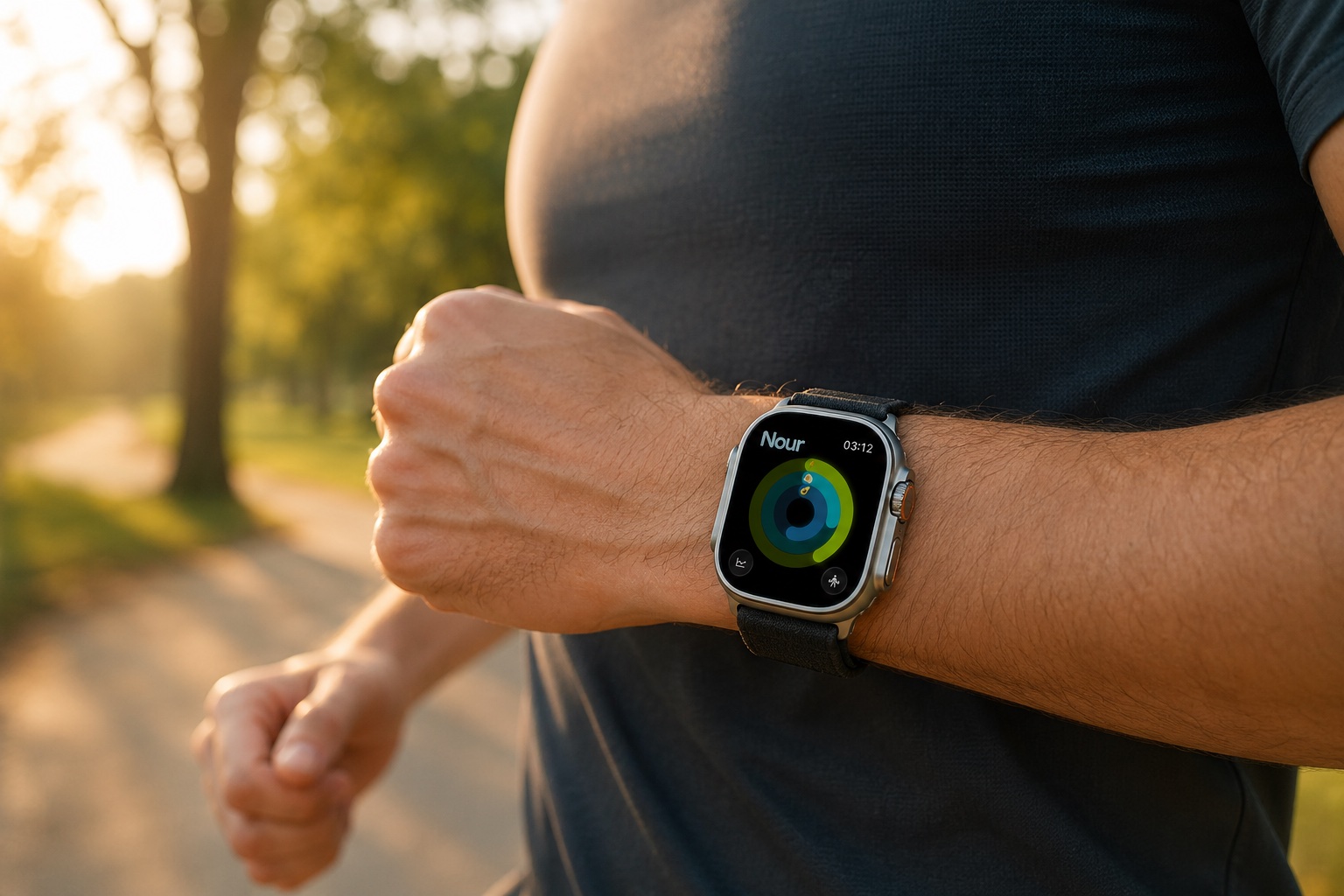
Most people use about 20% of what their Apple Watch can do for fitness. They close their rings, maybe start the occasional outdoor walk workout, and glance at their heart rate during exercise. That's it.
Which is a shame, because the Apple Watch is quietly one of the most capable fitness tools ever made. It's tracking a constellation of health metrics 24/7 — heart rate variability, blood oxygen, respiratory rate, wrist temperature trends, sleep stages, VO2 max estimates, and more. It knows things about your body that would have required a sports science lab a decade ago.
The problem isn't the hardware. It's that most of this data sits in Apple Health, beautifully visualized but largely unactionable. Here's how to change that.
The Underused Features You're Probably Ignoring
VO2 Max Tracking and Trends
Your Apple Watch estimates your VO2 max (cardiorespiratory fitness level) based on your heart rate data during outdoor walks, runs, and hikes. This is one of the single best predictors of long-term health and longevity — arguably more important than your body weight, blood pressure, or cholesterol.
How to use it: Check your VO2 max trend in the Health app (Browse > Heart > Cardio Fitness). Don't obsess over individual readings — they vary day to day. Look at the 6-month trend line. Is it going up, flat, or declining?
A declining VO2 max trend over months is a meaningful signal, even if you feel fine. It might indicate that your training has become too specialized (all weights, no cardio), that you're chronically under-recovered, or that you need to incorporate more zone 2 training.
Heart Rate Variability (HRV) — The Recovery Metric
HRV measures the variation in time between heartbeats. Higher variability generally indicates better autonomic nervous system function and readiness for physical stress. Lower variability can signal fatigue, stress, illness, or overtraining.
Your Apple Watch measures HRV automatically during sleep and sporadically throughout the day. The data lives in Health > Heart > Heart Rate Variability. For a deeper dive on what HRV means for training decisions, see what is HRV and why athletes should track it.
How to use it: Track your 7-day HRV rolling average, not individual readings. Individual readings swing wildly — your HRV at 2 AM versus 2 PM versus immediately after coffee will be completely different numbers. What matters is the trend.
A sustained downtrend in your HRV average (more than a few days) is a signal worth paying attention to. It doesn't always mean "stop training," but it does mean "pay attention." You might need more sleep, less training volume, better nutrition, or stress management.
The limitation: Apple Health shows you the data but doesn't tell you what to do with it. That's where third-party apps come in — more on this below.
Resting Heart Rate Trends
Your resting heart rate (measured overnight) is another valuable fitness indicator. As cardiovascular fitness improves, RHR typically decreases. A sudden increase in RHR can indicate illness (sometimes before you feel symptoms), accumulated fatigue, or overtraining.
How to use it: Your Watch records overnight RHR automatically. Check it in Health > Heart > Resting Heart Rate. Like HRV, the trend matters more than individual readings. A RHR that's been creeping up 5+ beats over two weeks is telling you something.
Sleep Tracking That's Actually Useful
watchOS has come a long way with sleep tracking. Current versions track sleep stages (REM, core, deep) and provide sleep duration and consistency metrics. But most people look at the total hours number and ignore everything else.
What to focus on instead:
-
Sleep consistency: The Watch tracks whether you're going to bed and waking up at regular times. Irregular sleep schedules suppress HRV and impair recovery even when total hours are adequate. If your bedtime swings by 2+ hours on weekends versus weekdays, that inconsistency is hurting your fitness.
-
Deep sleep percentage: Deep sleep is when most physical recovery and growth hormone release occurs. If you're training hard but getting minimal deep sleep, your recovery is compromised. Factors that reduce deep sleep: alcohol, late heavy meals, blue light before bed, warm sleeping environment.
-
Time in REM: REM sleep supports cognitive function, motor learning, and emotional regulation. If you're learning new skills (a new sport, complex lifts), adequate REM matters.
Blood Oxygen Monitoring
The Apple Watch's blood oxygen sensor (SpO2) measures peripheral oxygen saturation. Normal is 95–100%. Readings consistently below 95% can indicate respiratory issues, sleep apnea, or high-altitude effects.
Fitness relevance: Blood oxygen data overnight can hint at sleep-disordered breathing (like sleep apnea), which is far more common in athletes than people realize — especially in heavier lifters and those with higher body mass. If you see frequent dips below 90% during sleep, it's worth discussing with a doctor.
Wrist Temperature Tracking
Newer Apple Watch models track overnight wrist temperature changes relative to your baseline. This feature was introduced primarily for cycle tracking, but it has broader fitness applications.
Fitness relevance: Elevated wrist temperature can indicate the onset of illness — sometimes a day or two before symptoms appear. If you see an unexplained temperature spike combined with elevated RHR and depressed HRV, consider scaling back training intensity as a precaution.
Optimizing Your Watch for Better Workout Tracking
Wear It Correctly
This sounds obvious but matters more than you'd think. For accurate heart rate readings:
- Wear the Watch snugly during workouts (not loose enough to slide). The optical sensor needs consistent skin contact.
- Position it about one finger-width above your wrist bone.
- The green LED sensors don't work well through tattoos on some skin tones — if readings seem unreliable, try wearing it higher on the forearm.
Always Start a Workout Session
The Watch's auto-detection for workouts is convenient but imprecise. It's decent at detecting walks and runs but unreliable for gym sessions, yoga, or anything with irregular movement patterns.
Starting a workout session manually does several things:
- Activates the heart rate sensor for continuous monitoring (versus periodic sampling)
- Records calorie burn more accurately for that activity type
- Creates a defined workout record in Apple Health that third-party apps can access
- Enables workout-specific metrics (elevation for outdoor workouts, stroke detection for swimming)
Use Custom Workout Types
Apple expanded workout types significantly in recent watchOS versions. Beyond the basics (outdoor run, indoor cycle, strength training), you can select:
- Traditional Strength Training — for standard gym sessions
- Functional Strength Training — for CrossFit-style workouts
- HIIT — for interval training with appropriate heart rate zone tracking
- Cooldown — an underused type that's perfect for logging your post-workout stretching and helps the Watch understand your heart rate recovery pattern
- Mixed Cardio — for circuit-style workouts that don't fit neatly into one category
Selecting the right workout type improves calorie estimation and helps the Watch's algorithms understand your training patterns.
Calibrate for Better Accuracy
For outdoor running and walking, you can improve GPS and calorie accuracy by doing a calibration walk/run:
- Go to an area with good GPS reception (no tall buildings or heavy tree cover)
- Start an Outdoor Walk or Outdoor Run workout
- Walk or run at your natural pace for at least 20 minutes
- Keep a consistent pace — the Watch uses this to calibrate stride length against GPS distance
This calibration improves accuracy for indoor workouts too, where the Watch uses accelerometer data and your calibrated stride length to estimate distance.
Making Health Data Actionable
Here's where most people get stuck. The Apple Watch is excellent at collecting data. It is mediocre at interpreting data for fitness purposes.
Apple Health will show you that your HRV was 42ms last night. It won't tell you whether to train hard or rest today. It'll show you that your RHR has been trending up. It won't connect that to your increased training volume and decreased sleep.
Option 1: Manual Interpretation
You can learn to read your own data. Here's a simplified framework:
Daily Training Readiness Checklist
Green light to train hard:
- HRV is at or above your 7-day average
- RHR is at or below your 7-day average
- Sleep was 7+ hours with good deep sleep percentage
- No unexplained temperature elevation
Yellow light (train moderate):
- HRV is slightly below average OR RHR is slightly above average
- Sleep was 6–7 hours or quality was mixed
- One metric is off but others are fine
Red light (rest or very light activity):
- HRV is significantly below average AND RHR is elevated
- Sleep was under 6 hours or severely disrupted
- Multiple metrics are off simultaneously
- Temperature is elevated
This works but requires discipline to check every morning and the knowledge to interpret the data correctly. Most people start doing this and stop within two weeks.
Option 2: Let an App Do It
This is where third-party apps that integrate deeply with Apple Watch shine. Rather than manually checking five health metrics every morning, you open one app and get a single recovery score that synthesizes all of them.
Nour's Recovery Index does exactly this — it pulls HRV, sleep quality, resting heart rate, training load history, muscle recovery status, and nutrition data to generate a single readiness score each morning. The key distinction is that it factors in your training and nutrition alongside the Watch data, which Apple Health alone can't do because it doesn't know what you ate or how your muscles are loaded.
The benefit isn't just convenience (though that matters). It's that an algorithm can weigh multiple variables simultaneously in ways that are difficult to do mentally. Your HRV might be fine but your training volume spiked 30% this week — something you'd overlook manually but an algorithm catches.
Watch Face Complications Worth Using
Complications (the small data elements on your watch face) keep fitness data visible without opening any app. Here are the most useful ones for fitness:
- Activity Rings: The default, and still valuable. Glanceable progress toward move, exercise, and stand goals.
- Heart Rate: See your current heart rate at a glance. Useful for staying in target zones during cardio.
- Workout shortcut: One tap to start your most-used workout type. Eliminates the friction of navigating to the Workout app.
- Weather: Sounds unrelated, but knowing the temperature and conditions before an outdoor workout helps you dress appropriately and plan hydration. Underrated.
If you use a third-party fitness app with a Watch complication, put it on your primary face. The easier it is to start tracking, the more consistently you'll do it.
Advanced Tips for Specific Training Styles
For Strength Training
- Start a Strength Training workout before your first set, not after your warm-up. The warm-up heart rate data is valuable.
- Don't end the workout during rest periods between exercises (the Watch sometimes assumes you've stopped). Keep it running until you're truly done.
- Review your heart rate graph post-workout to understand which exercises demand the most cardiovascular effort. This information can help structure future sessions for efficiency.
For Running
- Use the Workout Views customization (Workout app > long press on any metric during a run) to display the data you actually care about: pace, heart rate zone, distance, and elapsed time.
- Enable the Pace alert to get haptic feedback when you drift outside your target pace zone. This is transformative for zone 2 training, where the goal is maintaining an easy, conversational pace.
For HIIT and Circuit Training
- Use the HIIT workout type, which is calibrated for the intermittent high/low heart rate pattern.
- After the workout, check your heart rate recovery: how quickly your heart rate drops from peak to resting. Faster recovery (30+ beats in the first minute) indicates good cardiovascular fitness. This metric improves over time and is a reliable indicator of fitness progress.
The Real Unlock
Your Apple Watch is already collecting an extraordinary amount of data about your body. The gap isn't in collection — it's in interpretation and action.
If you want to bridge that gap, you have two paths: learn to interpret the raw data yourself (time-intensive but educational) or use an app that does it for you (efficient and increasingly intelligent).
Either way, stop letting your Watch be a $400+ notification buzzer that happens to track your steps. It's capable of so much more. The only question is whether you're using it.
Turn your Apple Watch data into a daily recovery score, personalized workouts from your wrist, and real-time training guidance.
Try Nour Free